Who is this for? #
Directors who want to assign fees based on form responses. For example, your form asks a question that decides what a student owes — are you going on the spring trip, are you renting a school instrument, which meal do you want — and you'd rather charge everyone who gave a particular answer than build that list by hand.
Prerequisites #
- Your organization has Finances turned on, and you have permission to add fees.
- You've created a form, assigned it, and it has some responses. See Add a Form as a Director.
- You've created the financial item you're charging for. Every fee is attached to an item, so if yours isn't there yet, create it first. See Add Financial Items.
Narrow the responses to the students and parents you want to charge #
Filtering the responses table is what makes this work: you pick out the students and parents who gave a particular answer, and Presto charges that group.
For example, say your form asked "Are you interested in going on the spring trip?", and you charge a trip fee to everyone who answered yes. Here's how you'd filter down to just those people:
From the left navigation menu, press "Forms", then press the name of the form.
Scroll down to the responses table.
Press "Filters" above the table.
Set "Columns" to the question you're filtering on — in this example, "Are you interested in going on the spring trip?"
Set "Operator" to "contains", then type the answer you're after into "Value" — in this example, "yes".
The table now lists only the students and parents who answered yes, which is exactly who should owe the trip fee.

Tip
Filtering also works on the "Status" column, which is handy for charging everyone who has submitted the form, regardless of what answers they provided.
Assign the fee #
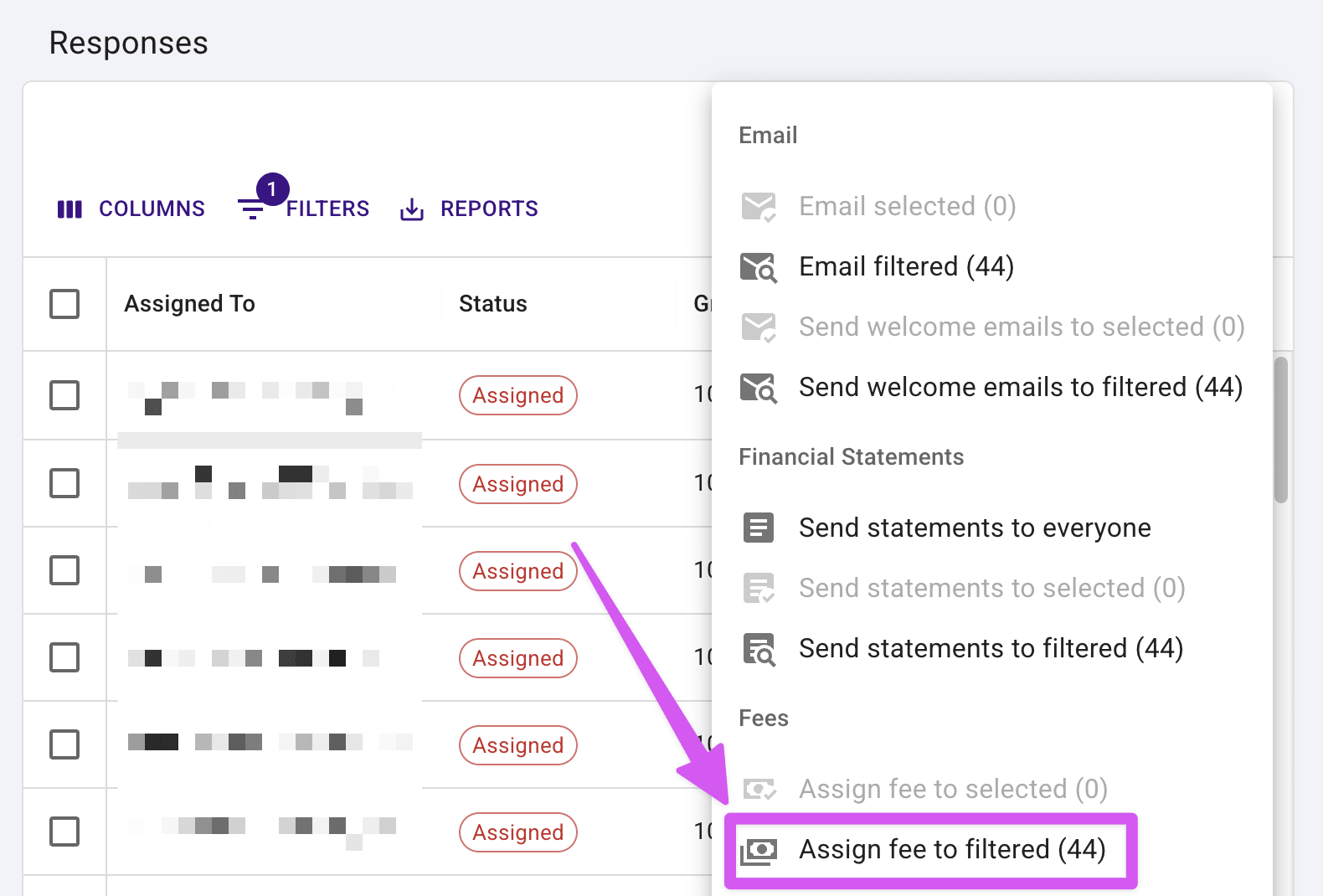
- Press the three dots above the table and choose "Assign fee to filtered". The number beside it is how many people currently match your filter — check it before you press, because that's exactly who gets charged.
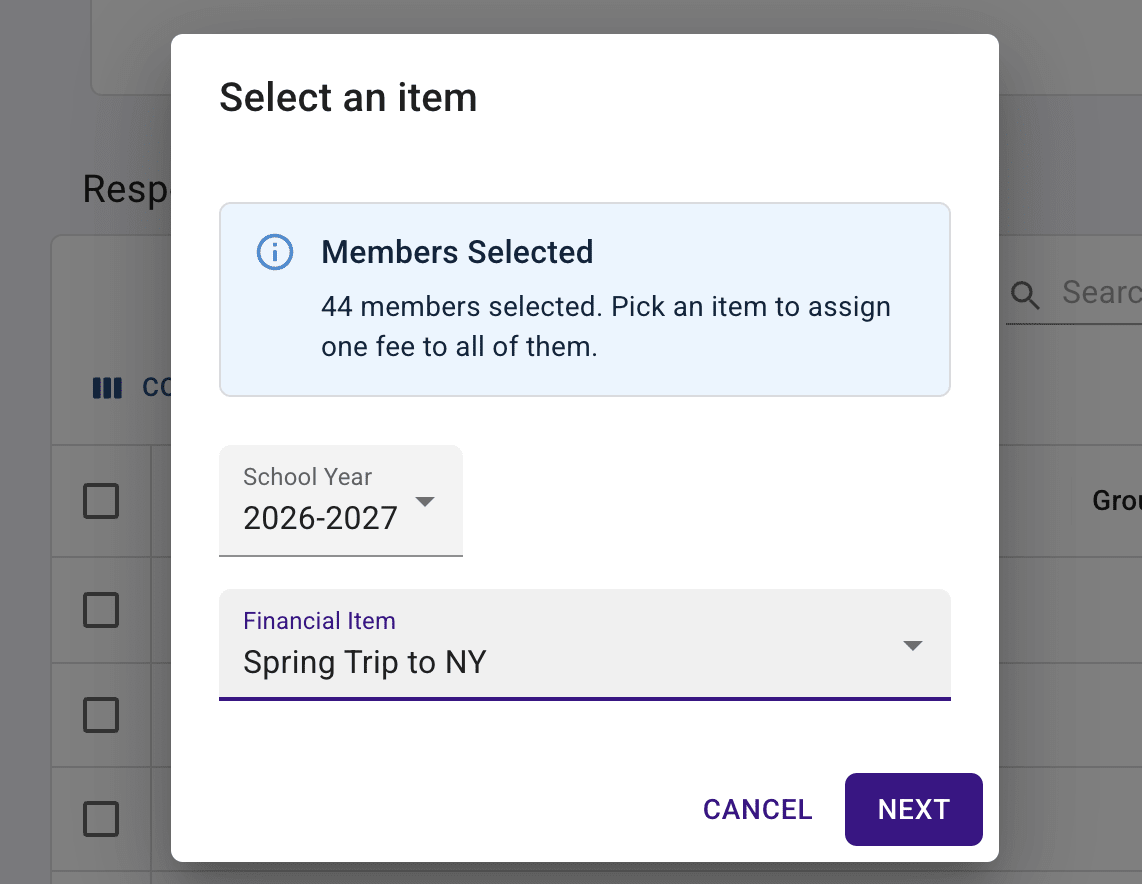
- The "Select an item" dialog opens and confirms how many members you picked. Choose the "School Year", then choose the "Financial Item" the fee belongs to, and press "Next".
- You land on the Add Financial Fee page with your school year, item, and members already filled in — the Select members card reads "Adding fees for [number] members." Press "View/Update Members" if you need to add or remove anyone before you commit.
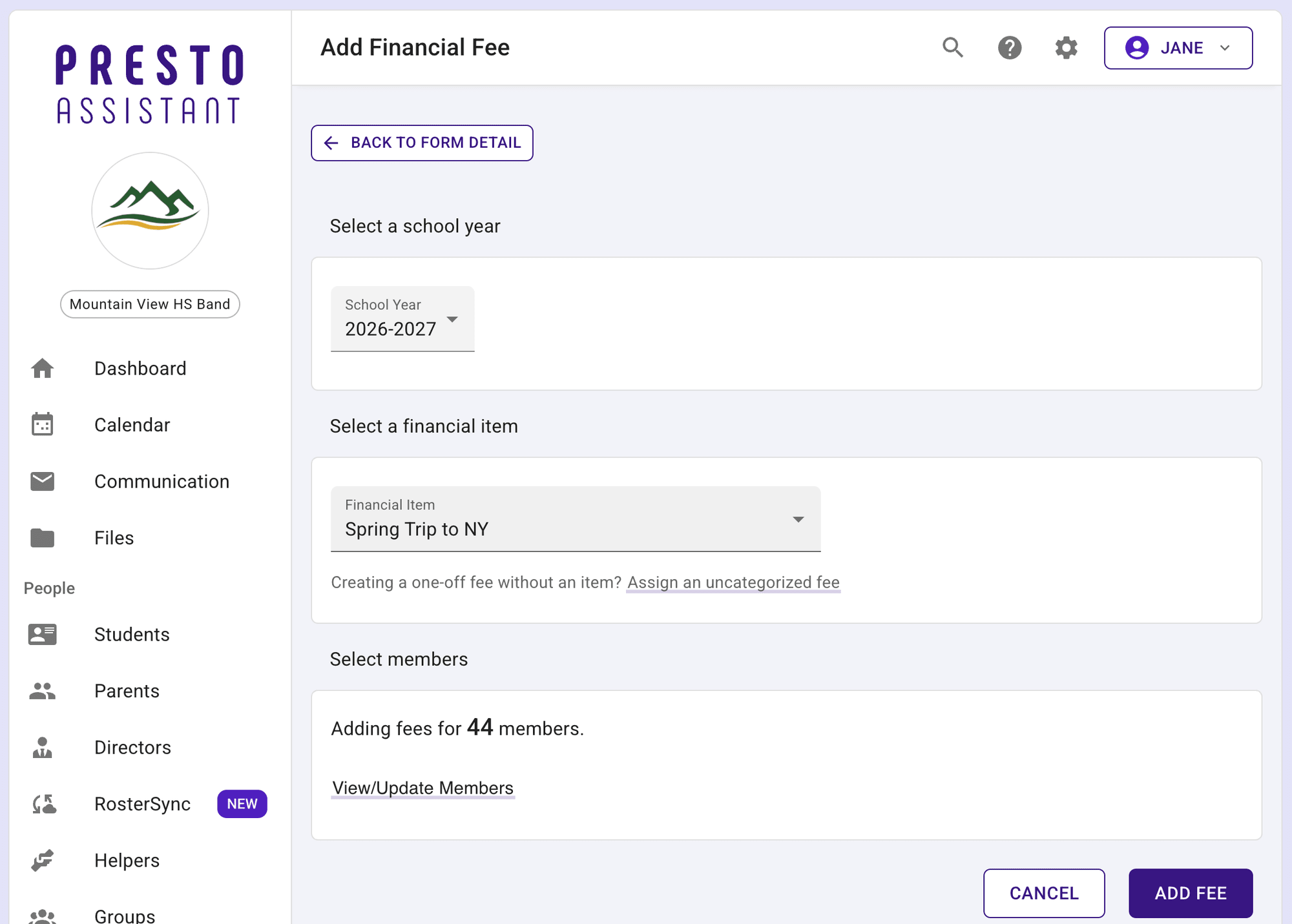
Press "Add Fee". Presto asks you to confirm.
Press "Yes, Add Fee" to finish. Presto creates the fee for everyone on the list and takes you to the fees table.
Assign the fee only to new responses #
Responses keep arriving after you've charged the first batch. For example, a week after you assigned the trip fee, another dozen students answer yes to the spring trip question, and they need that same fee.
Run this again exactly as described above — same filter, same item. Presto won't let you charge anyone twice by accident:
Filter the responses table the same way, and choose "Assign fee to filtered" again. The students and parents you already charged are still in the filtered group, so the count covers everyone, old and new.
Pick the same "Financial Item", and press "Add Fee".
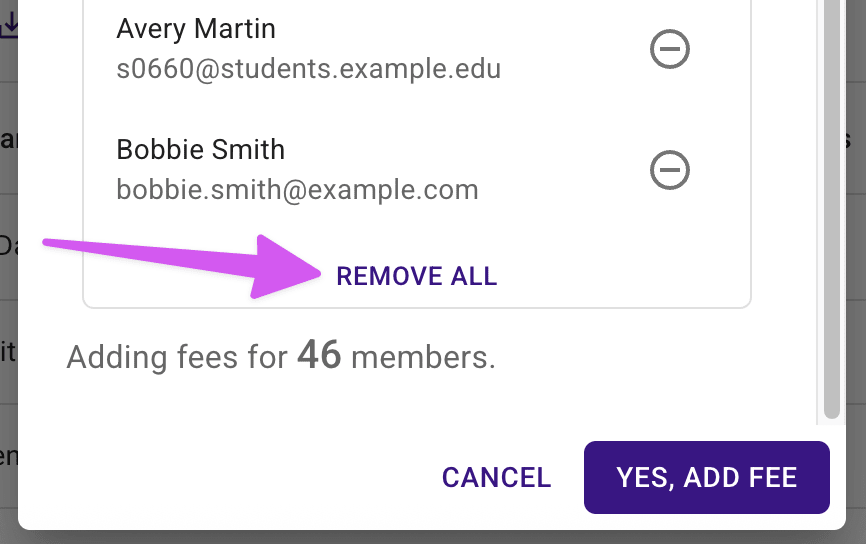
Presto notices the overlap and opens a dialog titled "Pre-Assigned Fees Found!", listing everyone who already has this fee by name and email.
Press "Remove All" to drop every one of them from the list at once, or press the minus button beside one person to remove only them. Watch the count at the bottom of the dialog — "Adding fees for [number] members" — drop as they come off the list.
- Once no one is left to remove, the dialog changes to "No Pre-Assigned Fees Found!" That's Presto telling you this is a clean add: nobody in the list is being charged twice, and the count is exactly how many new people will get the fee.
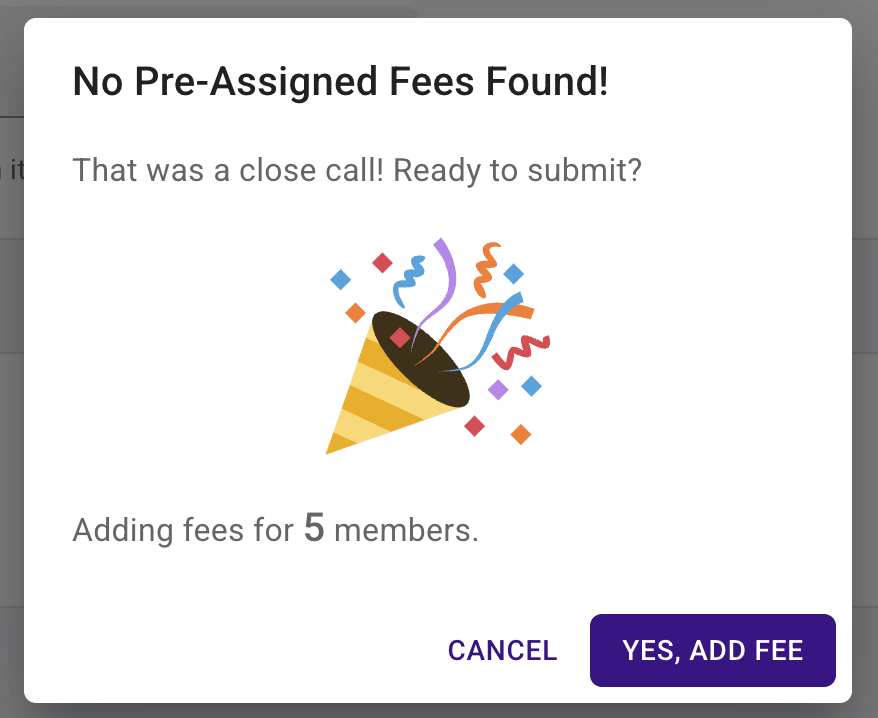
- Press "Yes, Add Fee". Only the people who are new since last time get charged.
Tip
If someone really does owe the same fee twice — a second trip payment, a replacement for something they lost — leave them in the list instead of removing them. The dialog is asking you a question, not blocking you.
Troubleshooting #
- I don't see the fee options in the three dots menu — you'll only see them if you have permission to add fees and your organization has Finances turned on. Check your permissions with whoever runs your organization in Presto.
- "Assign fee to filtered" is greyed out — no one matches your filter yet. "Assign fee to selected" stays greyed out until you check at least one row.
- The item I want isn't in the list — the item dropdown only shows items for the school year chosen right above it. Check the school year first, then create the item if it truly doesn't exist yet.