Who is this for? #
Any director in your organization can connect Presto Assistant to Google Calendar. The director who connects their Google account is the only one who can choose which calendars members see — so whoever manages your program's calendar should be the one to connect it.
Other directors can see which calendars are shared and can turn the integration off with "Revoke Access", but they can't change which calendars are shared.
What syncing does #
Presto Assistant reads events from the Google calendars you choose and shows them to your members on the Calendar page and on their Dashboard.
The sync runs one way. Presto Assistant reads from Google Calendar and never writes to it. To add, change, or delete an event, do it in Google Calendar and the change will show up in Presto Assistant.
Sync your Google Calendar #
- Go to the Integrations section of the Settings page.
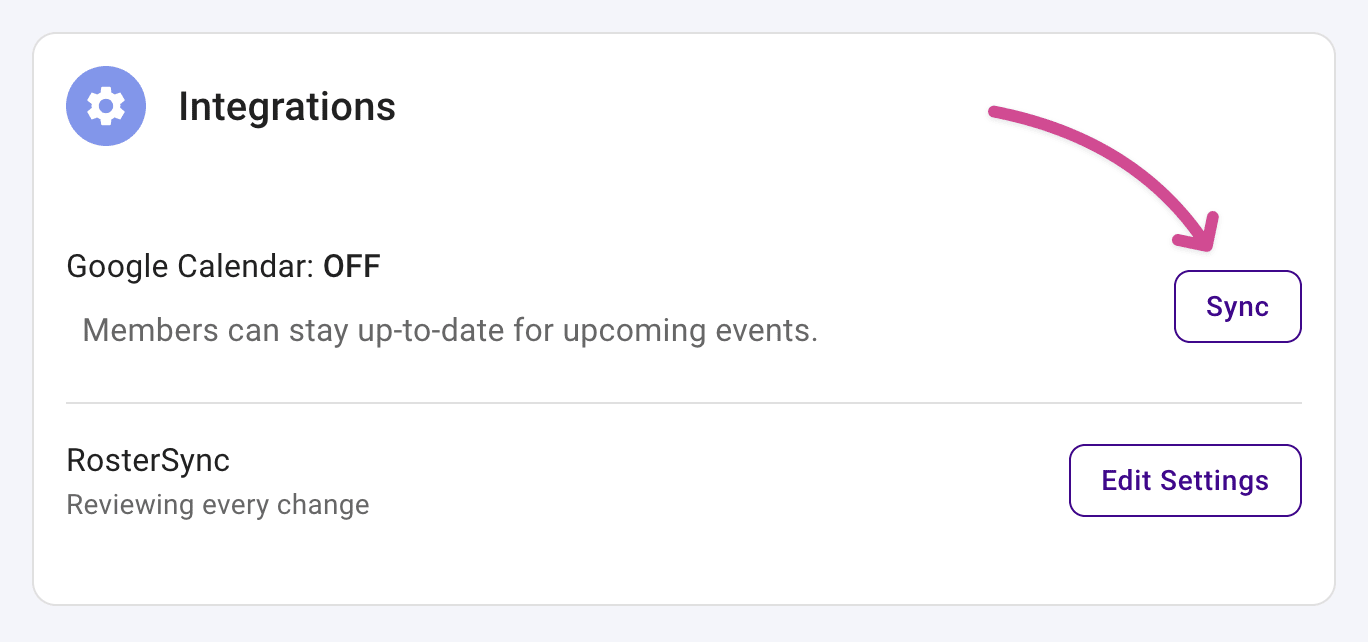
Press the "Sync" button. Presto Assistant sends you to Google to sign in.
Choose the Google account that owns the calendars you want to share, then allow Presto Assistant to see them. Choose carefully — Presto Assistant can only show calendars that belong to the account you connect here.
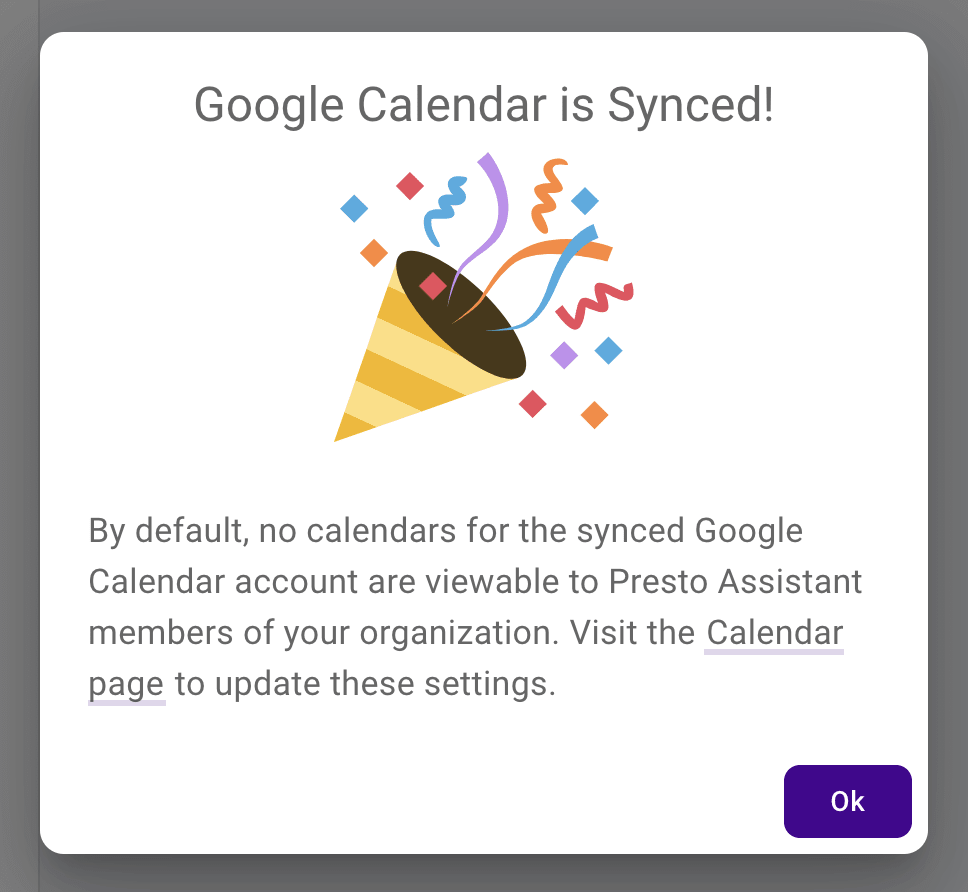
Google brings you back to Presto Assistant and a confirmation dialog appears. Press "Ok" to close it.
Tip
You can also start the sync from your Dashboard: press the "Sync" button in the banner at the top, or select the "sync your Google calendar" link in the "Upcoming Events" card.
Choose which calendars members can see #
Go back to the Integrations section of the Settings page. "Google Calendar" now reads "ON", and every calendar in the connected Google account is listed below it.
Check the box next to each calendar you want to share. Uncheck any calendar you want to keep private.
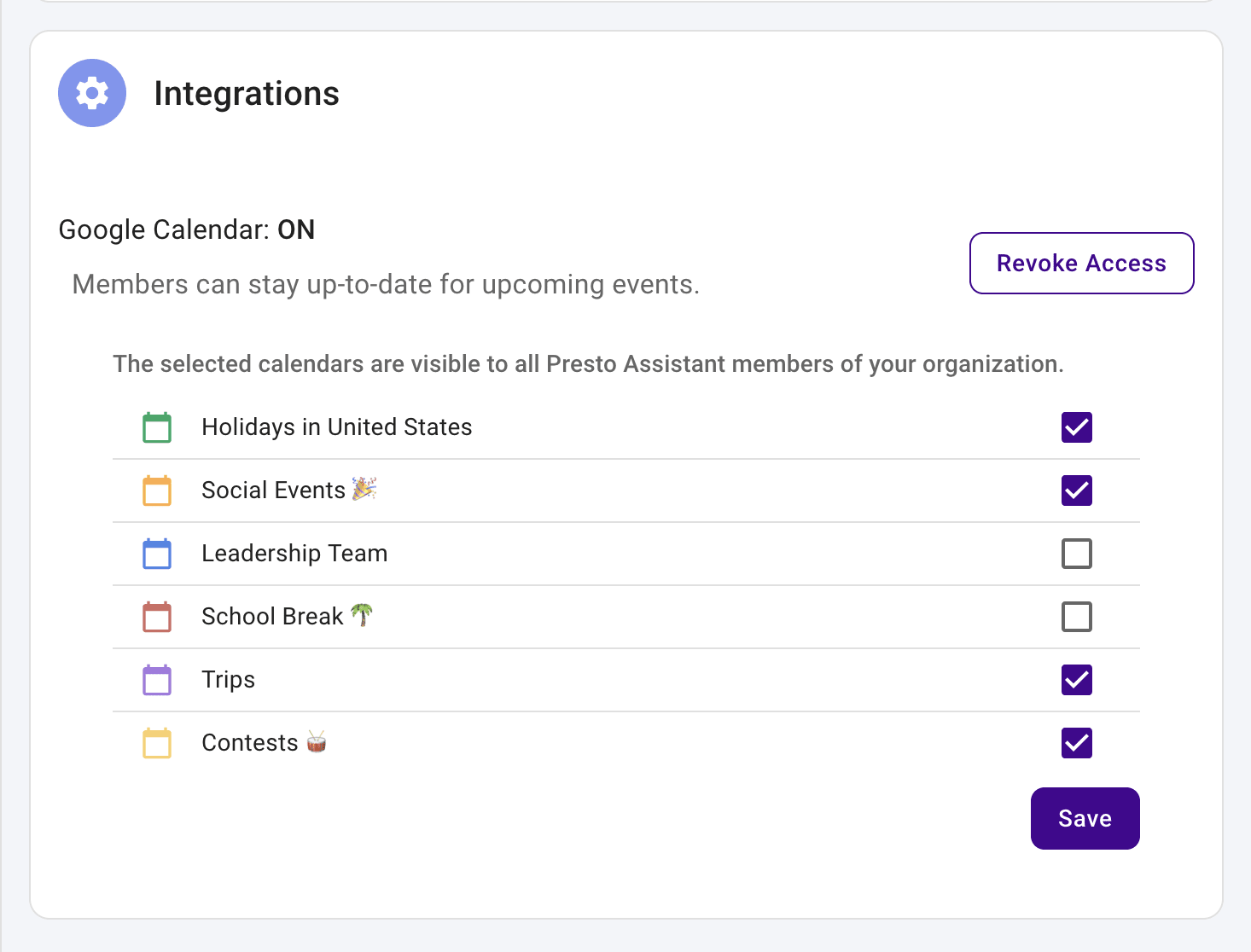
- Press "Save". The "Save" button stays turned off until you change a checkbox.
You can change this selection whenever you like, either here or in the Google Calendar section at the bottom of the Calendar page.
Everyone sees the same calendars
Every calendar you check is visible to all members of your organization — students, parents, and staff alike. It's not currently possible to share a calendar with only one group.
What members see #
As soon as a Google account is connected, a "Calendar" item appears in the left menu for everyone in your organization. The page stays empty until you save at least one calendar.
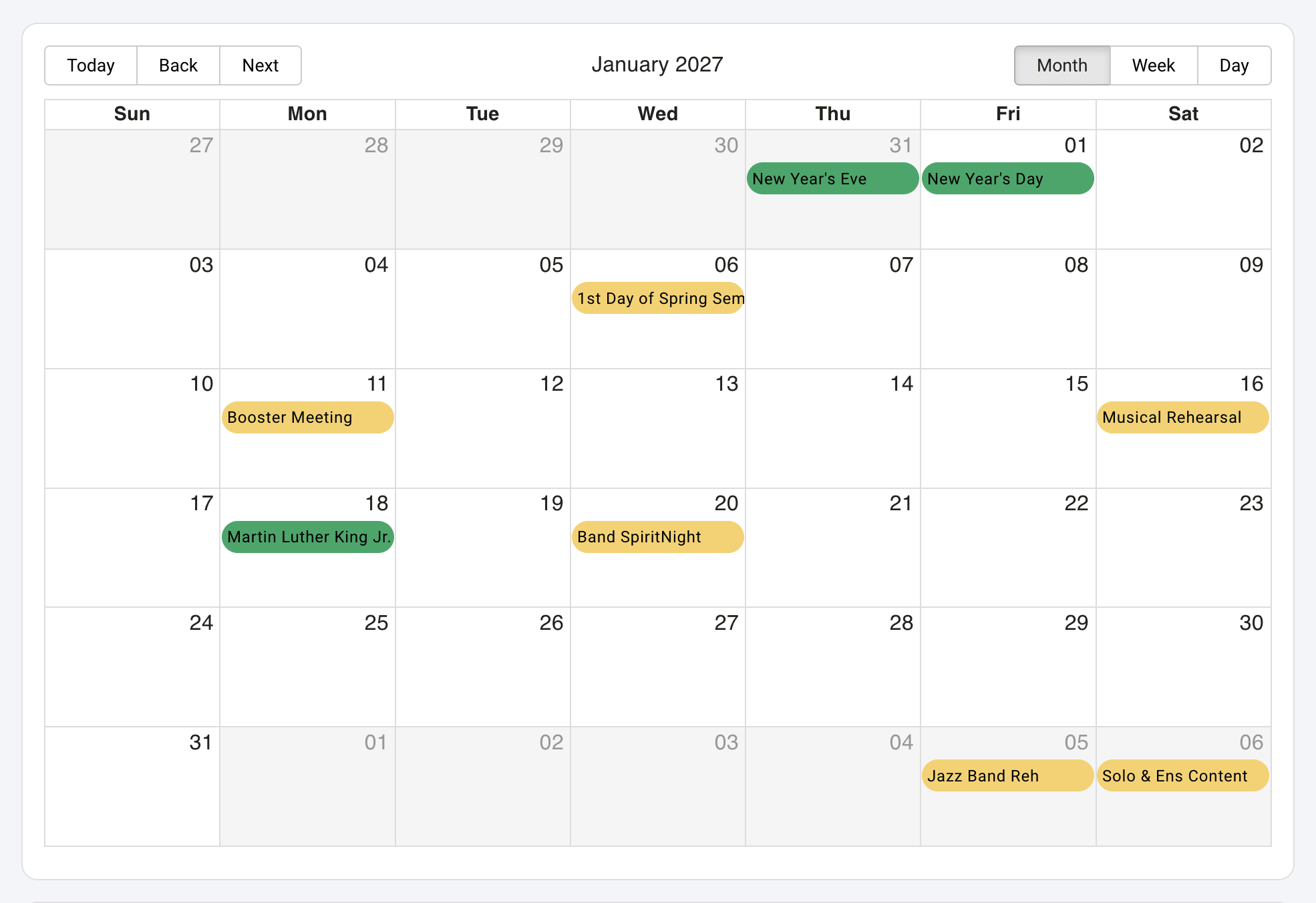
- On the Calendar page, members can switch between month, week, and day views. Selecting an event opens its time, location, and description.
- On the Dashboard, an "Upcoming Events" card lists the next few events.
Presto Assistant shows each event's title, description, location, and start and end times. Other Google Calendar details, such as guest lists and attachments, are not shown.
Remove Google Calendar #
Go to the Integrations section of the Settings page.
Press the "Revoke Access" button next to Google Calendar. On a phone, the button reads "Revoke".
In the "Remove Google Calendar?" dialog, press "Yes, Remove".
Your members will no longer see the Calendar page or upcoming events, and the "Calendar" item disappears from the left menu. Nothing changes in Google Calendar itself, and you can connect an account again at any time.
Next steps #
- Send the Welcome Email so members can sign in and see your calendar.
- Use the Getting Started Guide for Directors to finish setting up your organization.
Troubleshooting #
- There is no "Calendar" item in the left menu. No Google account is connected yet. Follow the steps above to sync a Google account, then check at least one calendar.
- Members see an empty calendar. Go to the Integrations section of the Settings page and confirm that at least one calendar is checked and saved.
- You can't change which calendars are shared. Only the director who connected the Google account can choose calendars. Ask that director to make the change. If they're no longer available, press "Revoke Access", then press "Sync" and connect your own Google account.
- You connected the wrong Google account. Press "Revoke Access", then press "Sync" again and choose the account you meant to use.
- A calendar is missing from the list. The list only includes calendars belonging to the connected Google account. Add or subscribe to the calendar in Google Calendar, then reload the Settings page.
- You see a "Google Calendar Sync Error" dialog. Try the sync again. If the error repeats, remove Presto Assistant from the third-party access list in your Google account security settings, then sync once more.