Who is this for? #
A helper who received a Welcome Email from a director inviting them to join a Presto Assistant organization.
Detailed steps #
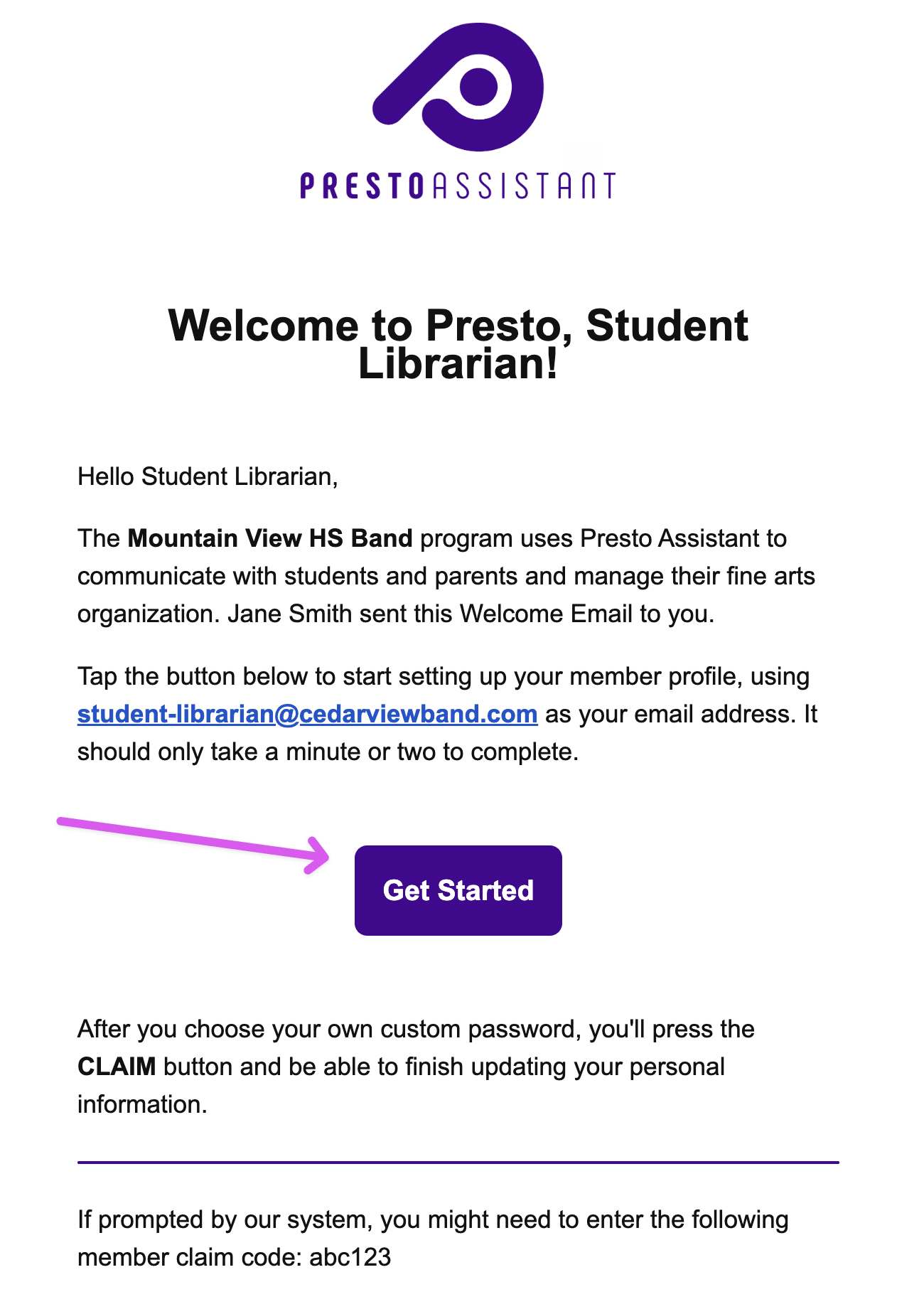
- In the Welcome Email, press the "Get Started" button.
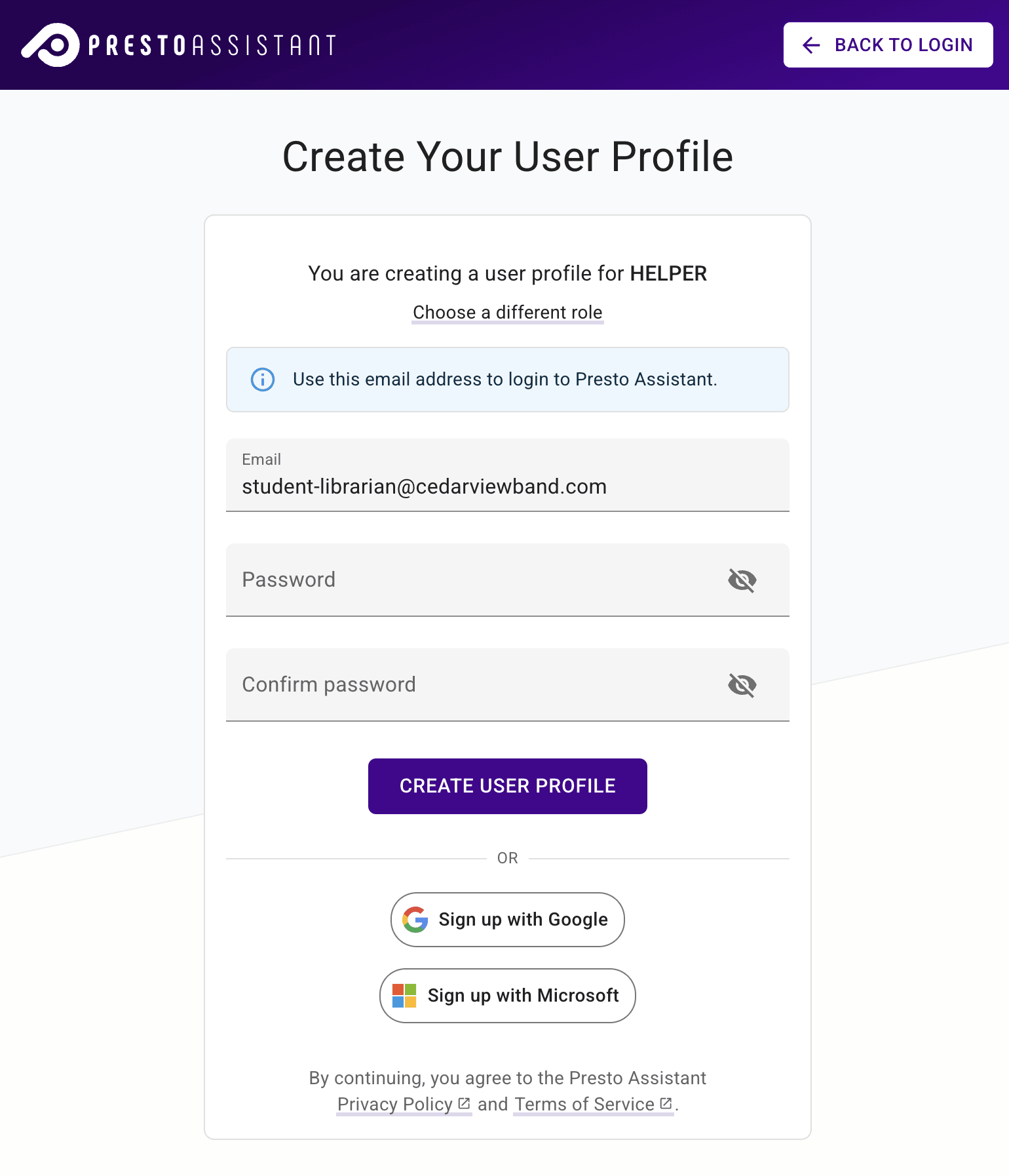
- Choose how you want to sign in:
Tip
Make sure you see Helper at the top of the form (highlighted in green in the images below).
Option A: Sign up with Google or Microsoft (Recommended)
Press the button labeled "Sign up with Google" or "Sign up with Microsoft". Follow the prompts to sign in with your the third-party account.
Option B: Use email and password
Add your email address and a strong password, then press the "Create User Profile" button.
By creating your account, you agree to Presto Assistant's Privacy Policy and Terms of Service.
Verify your email, following the steps in this article.
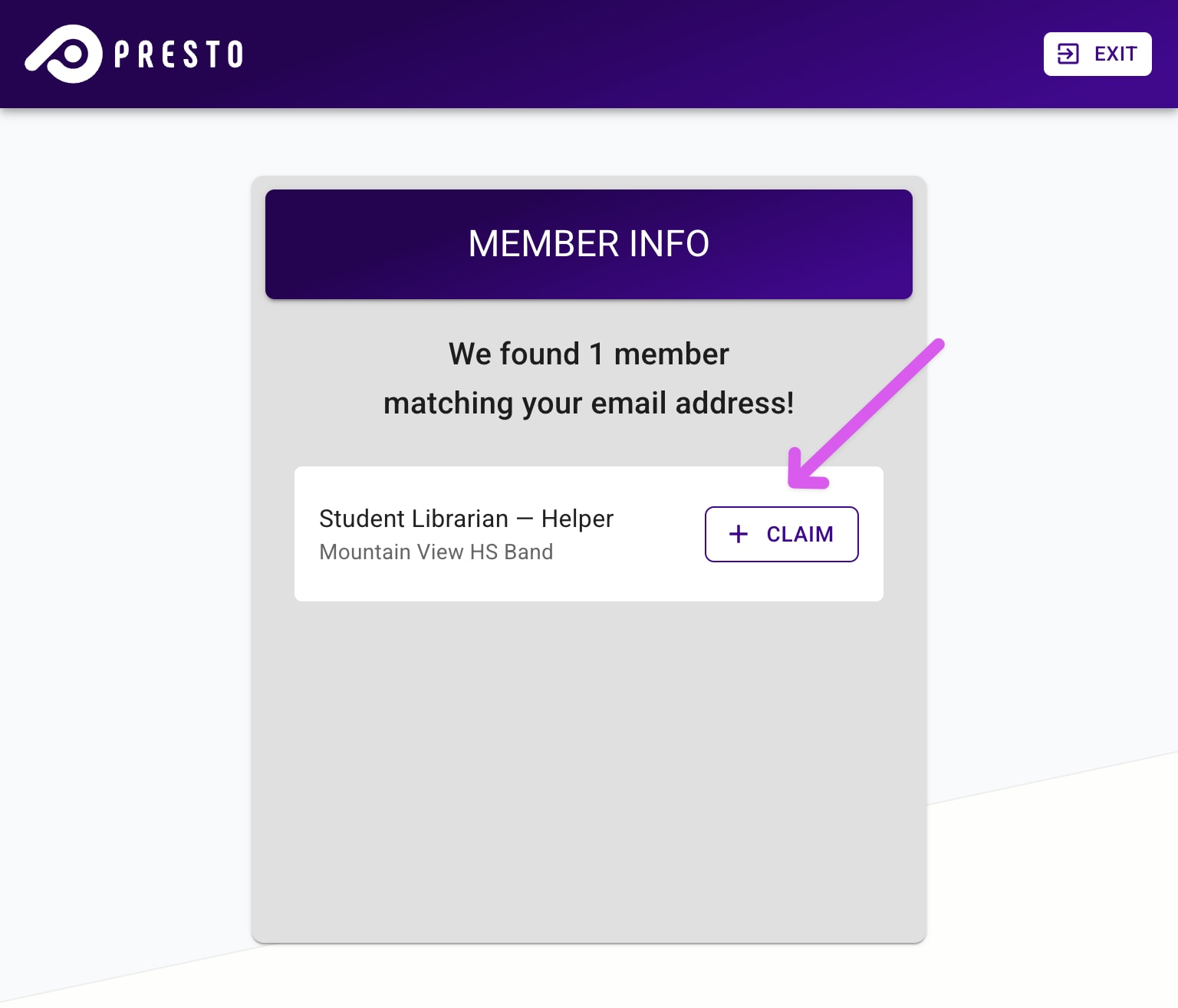
In the Member Info step:
Press the "Claim" button and skip to the next step.
If you used a different email address from where you received the Welcome Email, you will need to enter the Member Claim Code from the Welcome Email:
- Press the purple Member Claim Code button.
- Enter the Member Claim Code from the Welcome Email and your email address.
- Confirm the data is correct and press the "Yes, Claim" button.
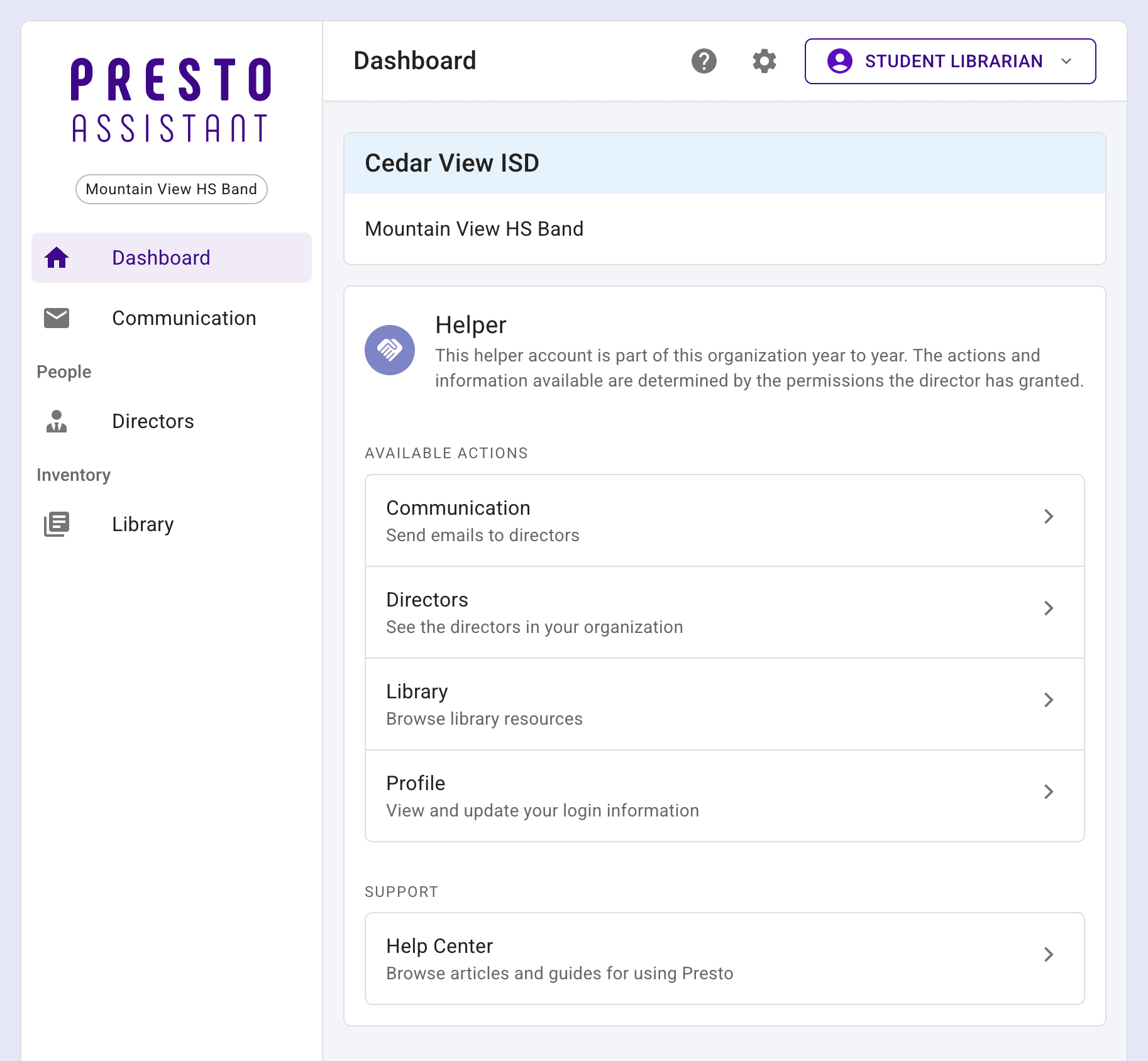
- All done! Your helper dashboard should show you know which parts of Presto Assistant you can access.