Who is this for? #
Students with a birthdate under 13, and the parents, Directors, and Admins helping them get authorized.
Why does this happen? #
Federal law (COPPA) requires students with birthdates under 13 to have parent permission to use Presto. Presto enforces this automatically: any student member with a birthdate under 13 is flagged, and a parent with their own Presto account must authorize that student before the student can sign in.
What a Student Sees #
A student under 13 who has not yet been authorized by their parent to use Presto will see this login error:
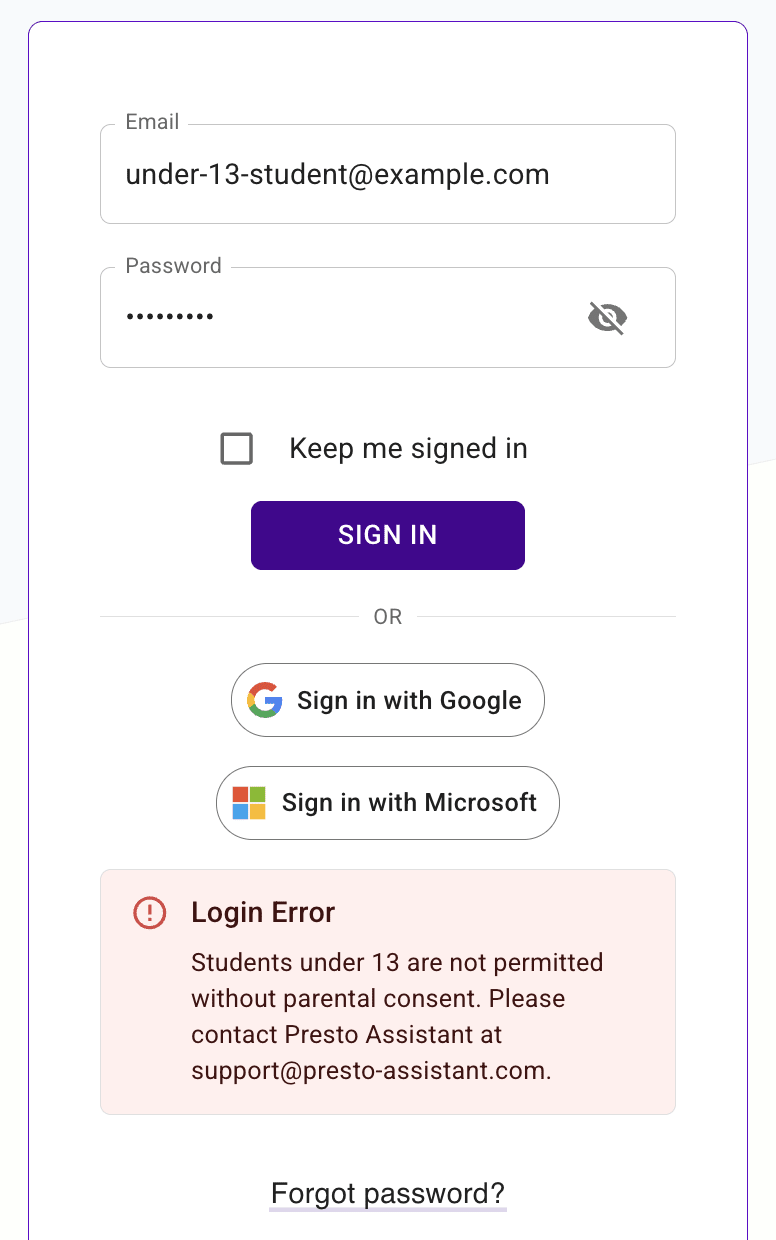
To get past this, a parent needs to authorize the student — see What a Parent Sees below.
If the student doesn't have a parent relationship in Presto yet, they're prompted to invite one instead, via "Invite Parent or Guardian" on the page titled "Parent Permission Required".
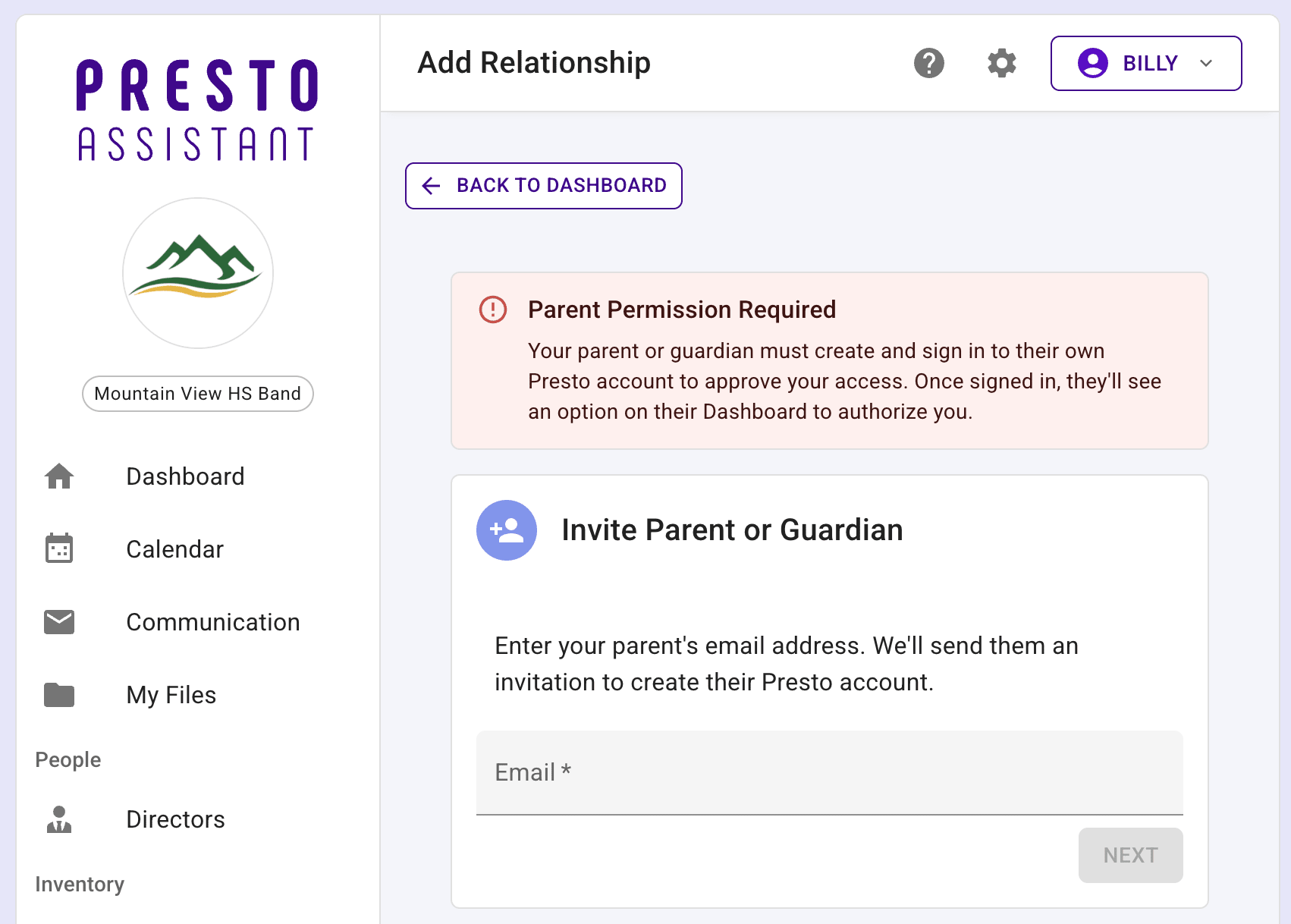
That invitation doesn't immediately unblock anything — a director still needs to approve the new family member, and the parent still needs to create their own account and sign in before they can authorize the student.
What a Parent Sees #
A "Children Under 13" card appears on your Dashboard whenever you have a child waiting on authorization, linking to your Profile page.
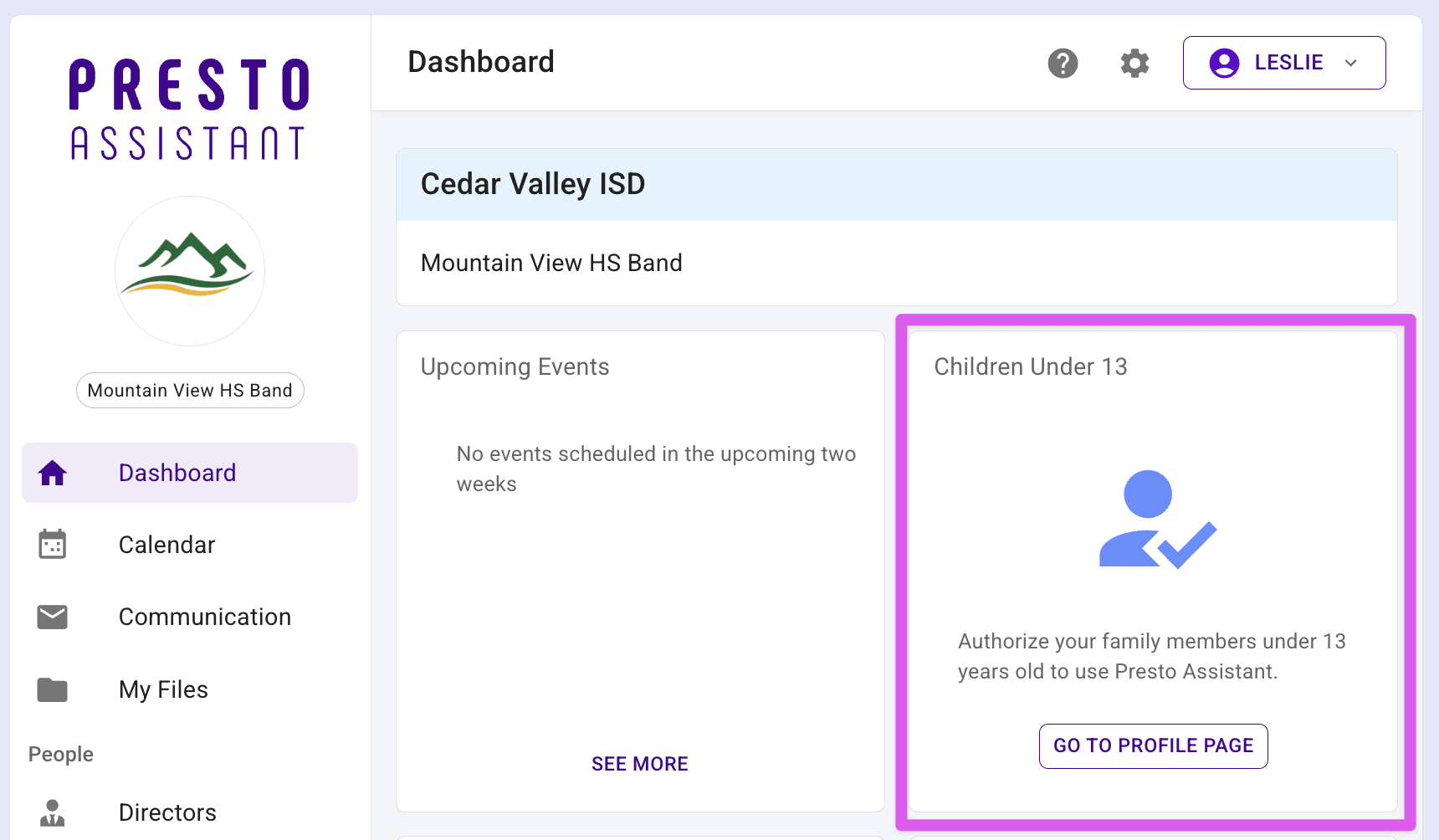
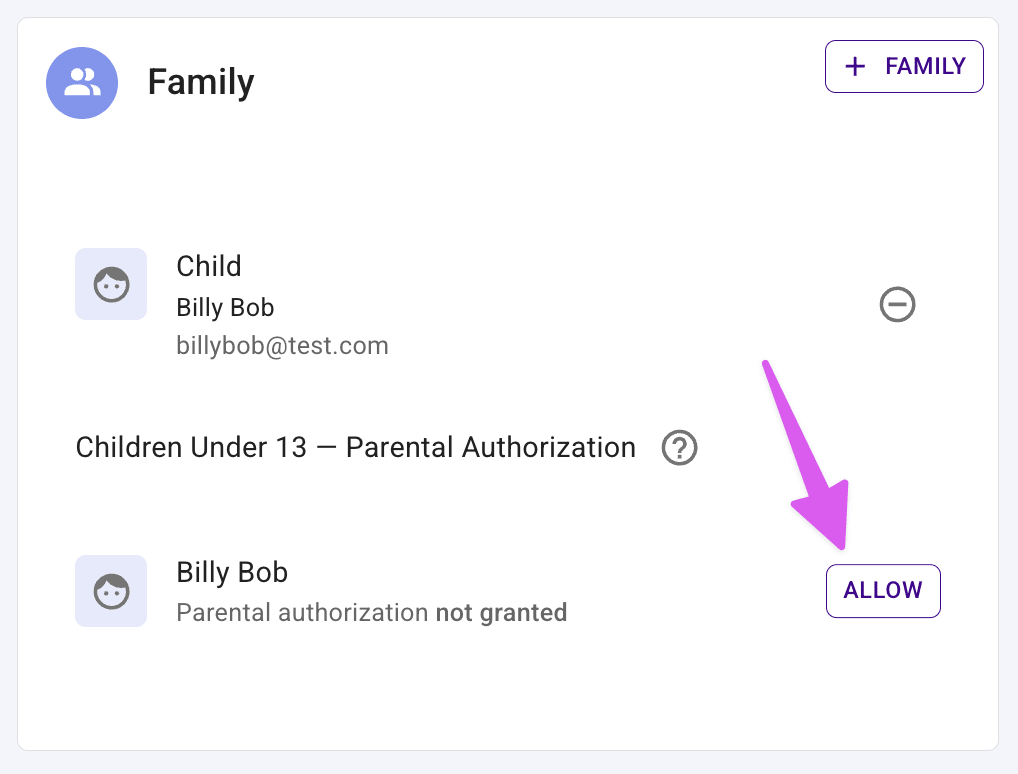
- On your Profile page, under "Children Under 13 — Parental Authorization", press "Allow" next to your child's name.
- Confirm "Yes, grant consent" in the dialog that appears.
Your student can now sign in normally.
Tip
You must have your own Presto account and be connected to the student as a family member — an in-app relationship where you've signed in at least once. Simply having your email on file isn't enough.
If your student has more than one parent connected in Presto, any one of you authorizing them is enough — it doesn't require all connected parents to act.
You can also revoke authorization you already granted from the same "Children Under 13" section — press "Revoke" next to your child's name and confirm. This immediately blocks that student from signing in again, the same as if they'd never been authorized.
Locked Out by Your Own Birthdate #
Under-13 restrictions apply to adult accounts in Presto as well. If you mistype your own birthdate, or accidentally enter your child's, you'll get flagged and blocked the same way a student would be. This is one case you can't get yourself out of: since there's no authorized parent above you to grant consent, your account needs its birthdate corrected by a director or by Presto Support.
What Directors and Admins See #
There currently isn't a dedicated view for directors or admins to see which of their students are waiting on parental authorization. If a student says they can't sign in, check their birthdate and confirm a parent is connected to their account, then reach out to that parent to authorize them — feel free to send them this article.
Troubleshooting #
- A student can't sign in and it's not obvious why — check whether their birthdate makes them under 13, and whether a connected parent has authorized them from their Profile page.
- A parent doesn't see the "Children Under 13" card or section — confirm they're actually connected as a parent to the student's account in Presto, and that they've signed in with their own account at least once.
- An adult (parent or director) is blocked from signing in — check whether their birthdate was entered incorrectly and shows them as under 13. See Locked Out by Your Own Birthdate.