Who is this for? #
This process is for users with an Administrator or Admin Assistant account in Presto. These accounts are tied to an Admin Portal, which serves as the central place where billing for all associated organizations is managed.
Tip
- Directors who do not have an Administrator or Admin Assistant account cannot complete billing themselves. If your organization does not yet have an Admin Portal, or if it does but you don’t have access, please get in touch with us — we can help you get set up or facilitate the billing process.
Detailed steps #
- Sign in as an Administrator or Admin Assistant user, and use the top-right Profile menu to switch to your Admin view (you might already be there).
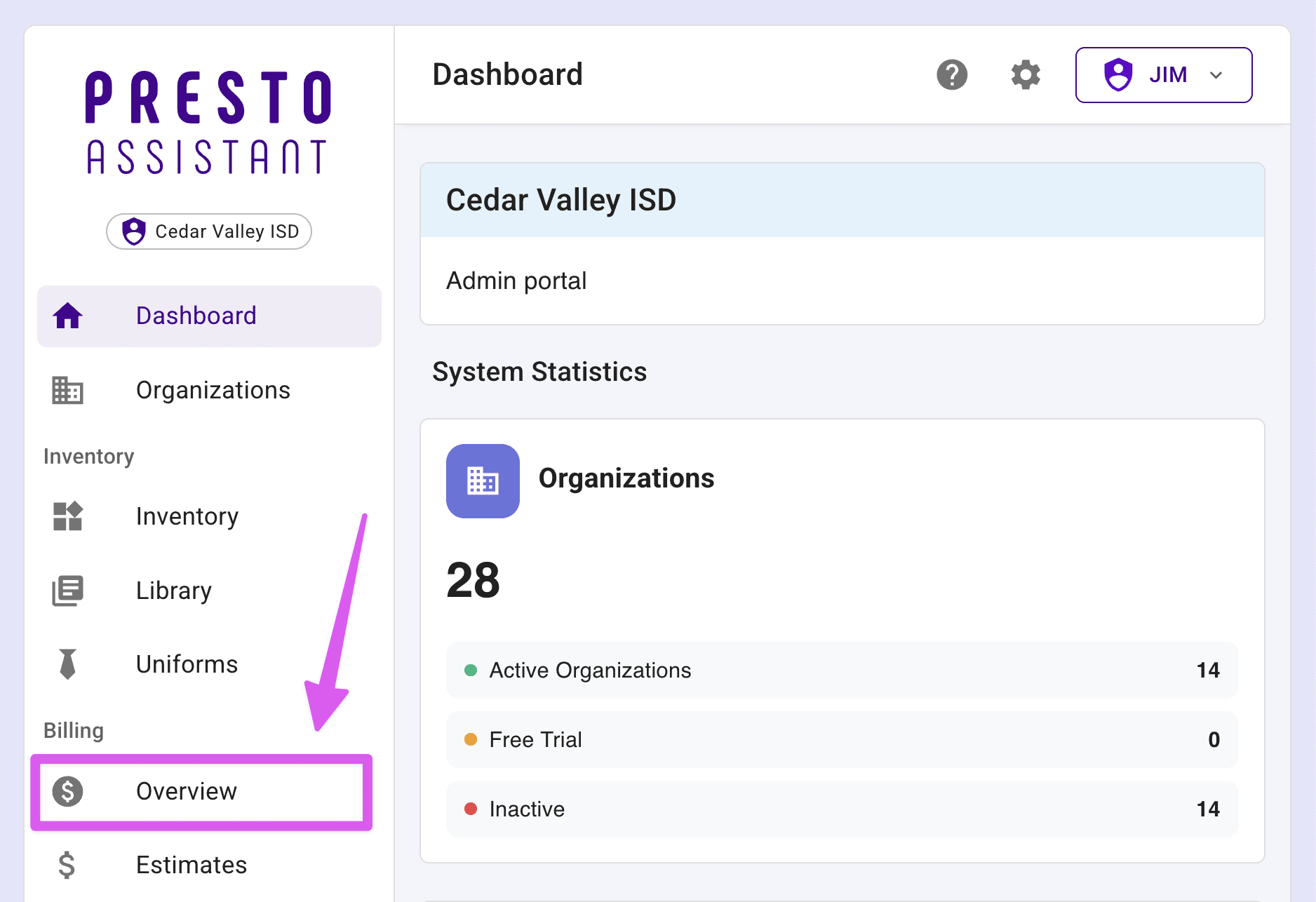
- Select Overview on the left navigation menu (under Billing).
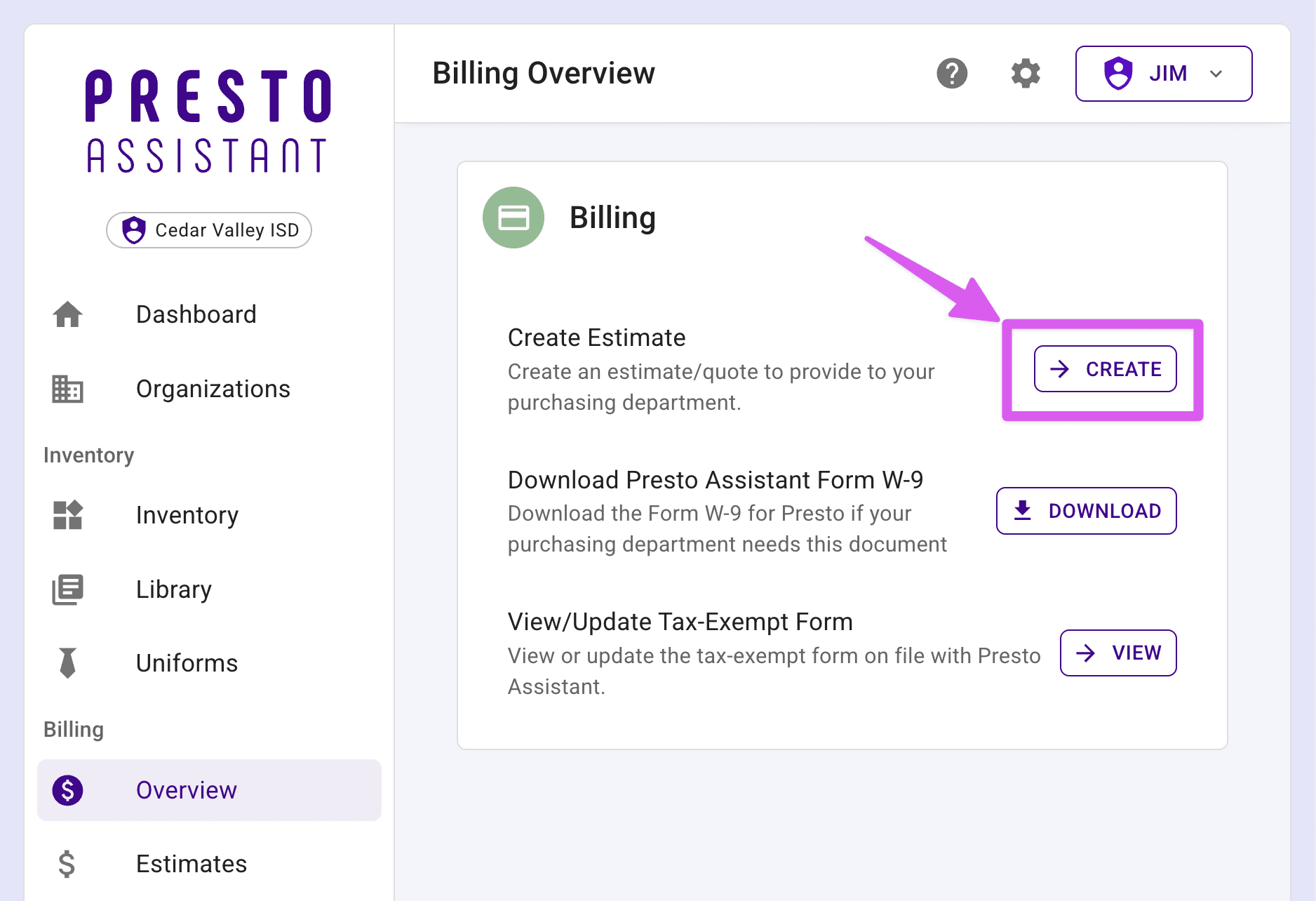
- Press the Create button to start the estimate creation process.
- If your state charges sales tax on educational purchases and you don’t have a tax-exempt form on file with Presto, you’ll be prompted to upload one before continuing.
- Click Add to upload your PDF form, then return to Step 3.
- Choose your license type and quantity, then press the Create Estimate button.
Tip
Once the estimate is created, an email will be sent to you containing a link to it. Anyone with that link can return to this estimate at any time. You can also find this estimate at any time by clicking Estimates on the left navigation menu.
- On the Estimate Review page, you can download a PDF of the estimate on Presto letterhead if needed.
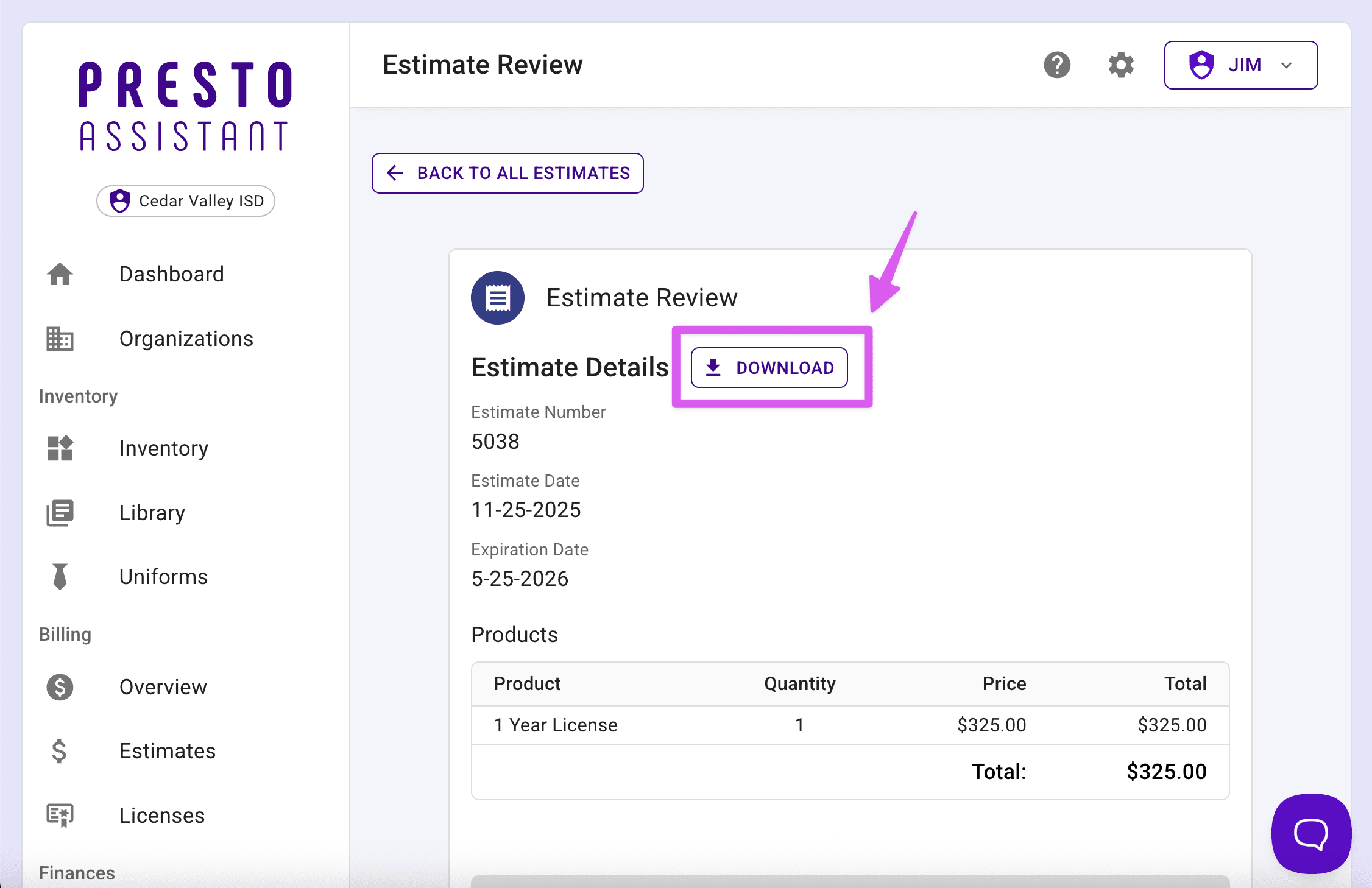
- Approve the estimate when ready.
- If paying online with a credit card:
- Click Convert to Invoice and follow the on-screen steps.
- You’ll have the option to download a PDF of your invoice on the following page.
- After your payment is processed, your licence(s) will be ready in about one minute. When they’re available, Presto will email you a link to access them.
- If paying with a Purchase Order:
- Follow your school’s process to generate a PO.
- Once you have the PO, return to the estimate via the link in your email or the Estimates page in Presto and click Upload Purchase Order.
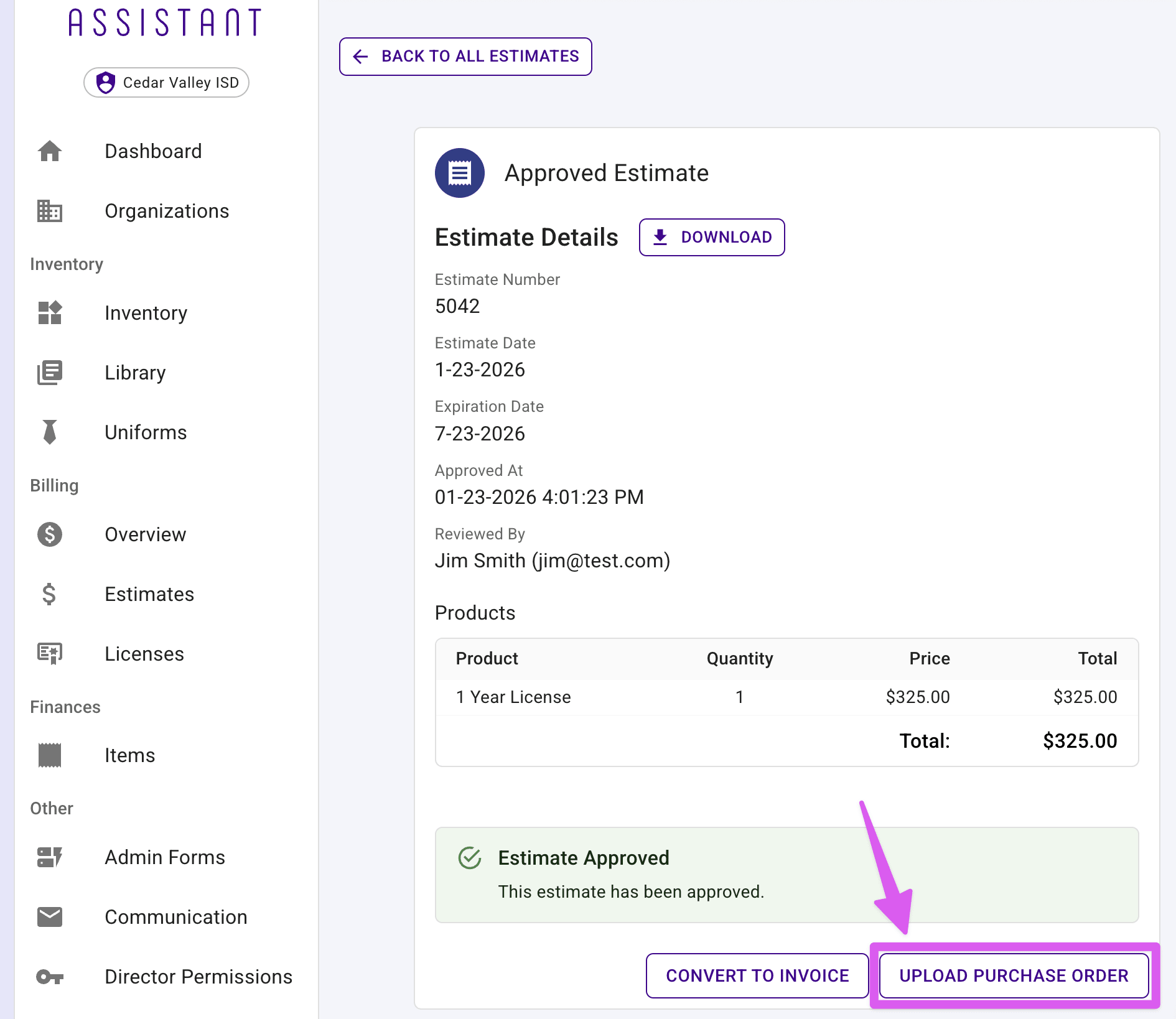
- The Presto team will verify the PO and make your licenses available in your Admin Portal.
Next steps #
- Follow this how-to guide to activate licenses for your organization(s).